Protect your privacy with T-Mobile

If you happen to be a T-Mobile customer, they have a privacy setting that you’re going to want to evaluate.

There’s a privacy toggle for “Sharing certain financial information” that, BY DEFAULT, is enabled and shows YOU authorizing them, T-Mobile, to share your information (including payment history) with third-parties (with other companies that you might not even have a relationship) for their marketing strategies and other activities.

To turn this option off:

  • Log in to your T-Life app
  • Click on the Manage tab
  • Click on the gear at the upper right
  • Select Privacy & policies
  • Click on Privacy dashboard
  • Select T-Mobile
  • Peruse the different toggles and unselect ones you want

Source story: https://www.phonearena.com/news/t-mobile-new-privacy-toggles_id172245

Lock Phone to One App

If someone needs to borrow your phone (especially a child) and you don’t want them using anything but one app (a phone call for a stranger, a game for a child), here’s an easy way to keep them on that one app.

Pro tip: this also works for when you’re playing a game or watching a movie and you don’t want to get redirected to a website when you’re trying to close those pesky ads…

Here’s how to Turn On & Use Guided Access / Screen Pinning:

For iPhones (iOS 13+):For Androids (8.2+):
1. Go to Settings.
2. Go to General.
3. Go to Accessibility.
4. Go to Guided Access.
5. Toggle Guided Access to on.
6. Specify a PIN to use to unlock the Guided Access and/or enable Face ID to unlock as well.
7. Run the app/game.
8. Triple-click the home button or side power button (if you don’t have a home button).
9. Click start on the menu at the top for the Guided Access.
1. Go to Settings.
2. Go to Security or Security & Location.
3. Go to Advanced.
4. Go to Screen Pinning.
5. Turn on Screen Pinning.
6. Specify a PIN, pattern, or password to use to unlock the Screen Pinning.
7. Run the app/game.
8. Swipe up to the middle of the screen to open the App Overview.
9. Select the app/game you want to pin.
10. Click on the app icon at the top of the screen.
11. Click on Pin.

Here’s how to Turn Off Guided Access / Screen Pinning:

For iPhones (iOS 13+):For Androids (8.2+):
1. Double-click the home button or side power button (if you don’t have a home button) if you enabled Face ID
-or-
Triple-click the home button or side power button (if you don’t have a home button), enter then PIN, and click End on the menu at the top for the Guided Access.
1. Depending on how you’ve chosen to get around on your phone, you will need to do one of the following:
— Gesture navigation: Swipe up and hold
— 2-button navigation: Touch and hold Back < and Home –
— 3-button navigation: Touch and hold Back < and Over view [ ]
You may need to enter a PIN, pattern, or password if so specified.

Quick Reminder on E-mail Security

Today’s story comes from Wired.com and talks about some sophisticated ways hackers/scammers can trick you into becoming their next victim.

Without plowing through the mumbo-jumbo, one of the easiest ways for you to avoid being scammed/hacked through e-mail is to not click on a link or an e-mail in a button.  For example, if you get an e-mail that looks like it came from your bank and it has a link or a button in the e-mail for you to click, don’t.  Open a new browser tab and log in to your bank like normal.  Then take care of whatever the e-mail was about.

Last quick piece of advice: have your bank (and other financial websites) bookmarked.  This prevents you from accidentally mistyping the address and ending up at a scammer’s/hacker’s website that looks just like the real thing, but isn’t.

Advanced E-mail Hacking Methods

IRIS Home (Lowe’s) is going away…

LowesIRIS

If you bought into Lowes’ IRIS environment for smart home technology, your functionality is about to come to an end.  After not being successful enough in competing against Amazon Alexa, Google Home, and even Apple HomePod, Lowes is pulling the plug and discontinuing IRIS services.  Per The Verge, you can get a pro-rated refund on a store gift card to purchase tech from other companies.

If you’re interested in setting up Smart Home Technology, please don’t hesitate to contact us.  We have integrated several homes and would love to help you with yours!

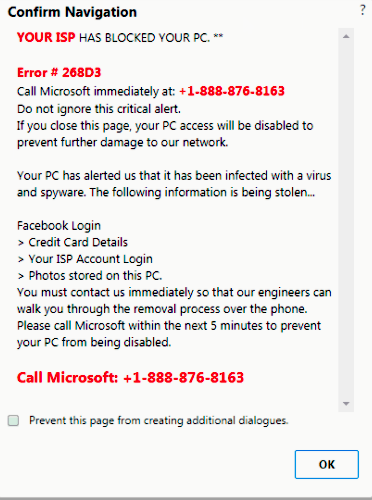
If you see this window (or one like it)…

ScamWindows

Do NOT call the number.

Do NOT give the people who answer remote access to your computer.

Do NOT pay them money for ‘tech support.’

This is a simple yet effective scam that has cost people in Beaufort County tens of thousands of dollars and continues to take money to this day.

What you SHOULD do is:

On a Windows computer, press Ctrl – Shift –  Esc which will cause your task manager window to appear.  Right-click on your web browser and select END TASK.

On a Mac, press Command – Option – Esc which will cause your force quit window to appear.  Select your browser and then click FORCE QUIT.

As long as you don’t open the same page up when you restart your browser, you are more than likely good to go at this point.

As always, make sure you have an active and updated antivirus software loaded on your computer.  If you have any questions, please don’t hesitate to call Eckrich Enterprises at 1-843-593-0131.

WiFi acting up? Google Home/Chromecast might be at fault

Due to a little sloppy programming, when your Google Home or Chromecast ‘wakes up’ from being in sleep mode for a while, it can overwhelm your WiFi router – even take it offline and deny service to other devices on the network.

Google & associated manufacturers are currently working on updating this – it should be pretty simple so don’t expect to wait longer than a week.

Original Story: Click Here

Upgraded to High Sierra?

If so, there is a vulnerability that allows people to unlock your computer without a password -AND- gives them ‘superuser’ permissions.

Apple has a temporary fix on their website until the release a patch closing this vulnerability.

In the meantime, do not allow anyone you don’t trust completely to have access to your Mac if you have critical information for your business (or private data for you and your family).

Apple-bitten

Original Story

Apple page

Security & Open Source Software

If you or someone on your team decides to use open source software (which has many pros: zero cost, usually minimal coding errors, sometimes free updates), there is one aspect about which you might forget: the security of that open source software.

When you are not using organic software, you are exposing your system(s) to vulnerabilities that can be found by anyone else downloading that same open source software.

As part of your cost savings, make sure to budget for periodic queries about newly discovered security weaknesses in any open source software you’re using.

As always, Eckrich Enterprises stands ready to assist you with organic code, using open source software, and/or evaluating your system security.

Original Story

Netflix’ new Android App for DVD Queue Management

Netflix has now produced a DVD Queue Management app for the Android operating system (OS).  Eight months ago, they published the Apple iOS version so, for the dwindling customer base that receives DVDs through the mail who happen to have Android OS, you can now manage your DVD Queue.

Exciting times, n’est-ce pas?

Original Story

Heard about that wireless internet vulnerability recently?

The KRACK vulnerability in wireless internet (WiFi) routers is a very real threat (possibility = HIGH) but unless you’re living next to a 13 year old learning about exploits, the threat is not high for you, your business, or your family (probability = LOW).  With that said, you should still update your computers’ operating system and your WiFi routers.

Microsoft has already updated Windows.  Apple will update soon.  Android and LINUX users seem to be the most vulnerable to this attack.  Again, make sure you update your routers as well.

As always, Eckrich Enterprises is ready to help you evaluate your network security (home, mobile, and business).

Original Story